Signing In

Using TeamsIPPhonePolicy, network administrators can create the following users who can then sign in to the phone:

UserSignin: All features are available, i.e., calls, meetings and voicemail
MeetingSignIn: Only meetings are available
Common Area Phone (CAP) users who can sign in to the device with a CAP account (as a CAP user) using TeamsIPPhonePolicy as follows:
CAP SignIn (SearchOnCommonAreaPhoneMode=Enabled): The user has calling and searching capability
CAP SignIn (SearchOnCommonAreaPhoneMode=Disabled): The user has calling capability

Before using the phone (after setting it up), you need to sign in for security purposes. You can sign-in with user credentials locally on your IP phone, or remotely with your PC / smart phone.

‘Modern Authentication’ is also supported.

Before signing in, the network administrator must make sure the phone gets the local time, using either:

DHCP Option 42 (NTP). If DHCP Option 42 (NTP) is opted for, the network administrator must specify the server providing NTP for the network.
time.android.com. NTP server option for Android phones.
time.windows.com. The phones’ default NTP server is sometimes not configured in DHCP Option 42. If not, the phones will attempt the Google NTP server. If DHCP Option 42 is not configured and the Google NTP server is blocked (for example), the phones will use this server and if it’s unavailable, the server time.nist.gov, described next.
time.nist.gov. The phones’ default NTP server is sometimes not configured in DHCP Option 42. If not, the phones will attempt the Google NTP server. If DHCP Option 42 is not configured and the Google NTP server is blocked (for example), the phones will use this server (time.nist.gov) if the server time.windows.com described previously is unavailable.
Admins can manually define the NTP server to comply if necessary with enterprise security requirements, if those requirements preclude using DHCP Option 42.

Manual configuration takes precedence over DHCP Option 42 and the time servers.

Two ways to manually define the NTP server are available:

in the phone's user interface
in the phone’s .cfg configuration file, using parameter 'date_time/ntp/server_address'

See also under here for more information.

In most regions, Daylight Saving Time changes the regional time twice a year. DST Validation allows maintaining accurate time. Two options for phones to get the correct time are:

[Recommended] If the DHCP server offers Timezone Options (100/101), the phone will set the obtained time zone and display the correct time on the screen; the time will be calculated based on an embedded Time Zone database, factoring in DST.
If the DHCP server offers Time Offset Option only (2) and if the Timezone priority mechanism is determined to be on DHCP and not on GEOLOCATION, the phone will assign the obtained time offset to the first matched region in the list but there is a good chance it won’t reflect the actual geographical location, therefore the displayed time might be incorrect in some cases. For example, if the given time offset is GMT-5 and the phone is located in Mexico, the phone will get the time (and the DST setting) from central time and not from Mexico because in GMT-5 there is also Central Daylight Time.

If the internet connectivity check fails, a ‘No Internet Access’ warning pops up on the phone screen.

Internet Connectivity Check - No Internet Access

This can point to a problem that is preventing the phone from fully functioning in a Teams environment. The user can ignore the message if the Teams application is fully functioning, or can report a problem if the Teams application is not fully functioning.

To sign in:
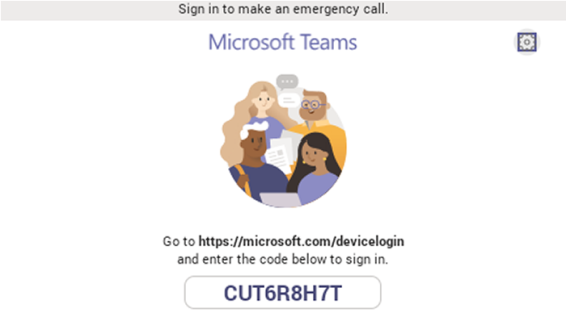
1. Connect the device to the network; this screen is then displayed:

2. Open your browser and point it to https://microsoft.com/devicelogin as instructed in the preceding screen.

3. Enter the code and then click Next.

4. Click the account.

5. Enter your password (it's the same password as the Windows password on your PC) and then click Sign in.

6. Close the window shown in the preceding figure.
7. Observe that the phone returns to the initial code screen. In that screen, select Sign in on this device.

8. Select the 'Email, phone or username' field; a virtual keyboard pops up. Enter one of them and then choose Sign in. The 'home' screen opens.
If you opt to Sign in from another device, complete authentication from your PC or smart phone. This is recommended if you’re using Multi Factor Authentication (MFA).

The phone supports a strong password check in order to log in as Administrator. The feature strengths security. The default password:

must be changed before accessing the device via SSH
can be changed per device in the phone screen (the user first enters the default password and is then prompted to modify it to a more complete password) or via bulk configuration of multiple devices using Microsoft's TAC or AudioCodes' Device Manager
Criteria required for a strong password are provided: The password must:
be greater than or equal to 8 in length
contain one or more uppercase characters
contain one or more lowercase characters
contain one or more numeric values
contain one or more special characters

Sign-in from PC / Smart Phone

Signing in with another device

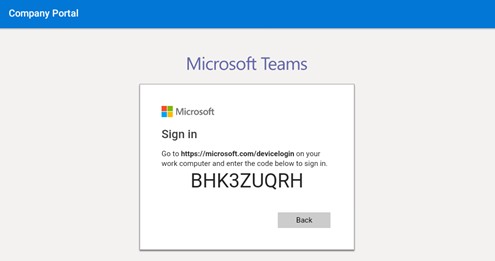
In the browser on your PC or smart phone, enter the URL indicated in the preceding screen and then in the phone’s Web interface that opens, perform sign-in (as noted previously, this option is recommended if using MFA).

LLDP-MED (Link Layer Discovery Protocol – Media Endpoint Discovery) is a standard link layer protocol used by network devices to advertise their identity, capabilities, and neighbors on a local area network based on IEEE802 technology, principally wired Ethernet. Teams devices connected to the network via Ethernet will dynamically update location information for emergency calling services based on changes to network attributes including chassis ID and port ID.